Search documentation
Find a documentation page by the words on it.
Documentation
Collecting a Copay or Balance at Check-In
When a patient arrives, the Check in dialog shows what they owe and lets you record the money you take at the desk. Serelora records the payment. It does not run the card for you in the office.
This feature is controlled by the Billing feature flag. If you do not see it in your clinic, contact Serelora at support@serelora.com and ask for it to be turned on.
What you need
- Billing. Your clinic needs the Billing feature, which works together with Visits (Encounters).
- Role. Every role that can check patients in sees the balance. The Collect payment button is shown only to roles that can record payments, which by default are Admin and Office Manager. An Administrative Assistant sees the balance but not the button unless an Admin adds the permission listed as Issue invoices to that role. See Custom Roles and Per-User Permissions.
Step 1: Open Check in and read the balance
Select the appointment on the Calendar, then Check in. The Account panel shows one of these:
- An amount due, with the number of invoices if there is more than one.
- No balance due.
- An amount in credit, marked "patient is in credit".
- "Balance unavailable right now." The check-in still works, and the balance is not guessed.
Step 2: Know the copay
The Check in dialog does not show a copay amount. Where your clinic has Insurance billing on, its Insurance line shows the payer and member ID. The coverage card in the Patient record tab has a Copay field, under Pharmacy and cost sharing in Insurance & Guarantor, which holds whatever your team entered or scanned from the card. See Insurance Coverage. Serelora does not turn that value into a charge or collect it for you.
Step 3: Select Collect payment
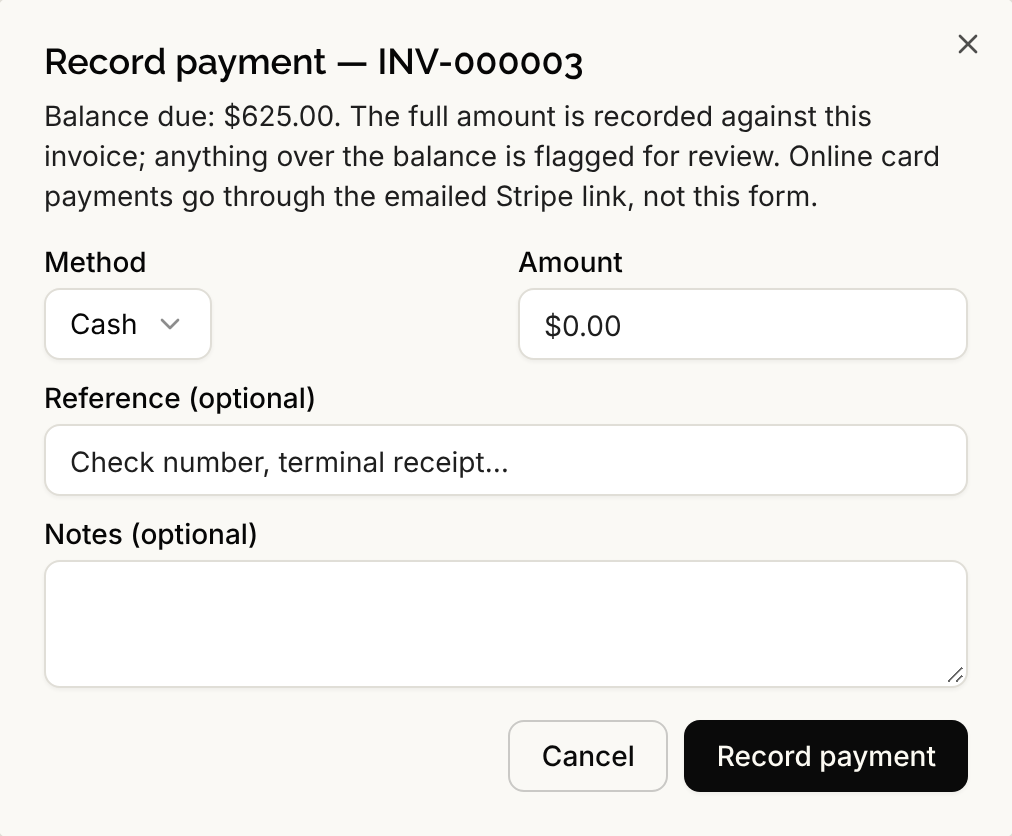
Select Collect payment. It records against the patient's oldest open invoice. Choose a Method (Cash, Check, Card (office terminal) or Other), enter the Amount, add a reference such as a check number, and select Record payment. See Recording a Payment.
Step 4: When there is no invoice yet
With no open invoice the same button reads Take payment, and the panel explains that a payment taken now is held as an unapplied credit. A copay taken before the charges exist is the usual case. After the visit, the charges are added and invoiced and the credit is applied. See Applying Payments to Invoices and Adding Charges from a Visit.
Step 5: When the patient wants to pay later or online
- If the patient has an issued invoice and your clinic has connected Stripe, an Admin or Office Manager can email a payment link. See Sending a Payment Link. Patients can also use Pay online in the Billing tab of the patient portal.
- To see everyone with an open balance, see Open Balances and Unpaid Invoices.
What Serelora does not do
- It does not run a card in the office. Card (office terminal) records a payment you took on your own terminal.
- It does not work out the copay from the insurance answer, add it to the visit, or stop a check-in when a balance is owed.
- A payment recorded by mistake is corrected afterward, not undone from the dialog. See Applying Payments to Invoices.