Search documentation
Find a documentation page by the words on it.
Documentation
Spruce Contact Sync
This feature is controlled by the Spruce messaging feature flag. If you do not see it in your clinic, contact Serelora at support@serelora.com and ask for it to be turned on.
Spruce is not available to clinics yet, and contact sync is the part with the least testing. It works from the events Spruce sends when a contact is created or updated, and Serelora has not yet confirmed with Spruce how those events arrive. See Spruce Integration.
Contact sync adds new Spruce patient contacts to Serelora as they appear, without you scanning for them. It is off until an Admin turns it on for the clinic. For a one-time, hands-on version, use Spruce Contact Import.
What you need
- The Admin role.
- A connected Spruce account and event receiving turned on, because contact sync reacts to the events Spruce sends.
- Spruce not paused for your clinic. The card says "Contact sync can't be turned on while Spruce is paused for this clinic." See Pausing and Resuming Spruce.
Step 1: Find the Contact sync card
On the Setup sub-tab of the Spruce tab, find the Contact sync card. It says "Contact sync adds Spruce patient contacts that clearly match no existing patient to Serelora as new patients. It is off until an administrator turns it on for this connection." A line under it gives the current state, for example "Contact sync is off. New Spruce patient contacts are not added to Serelora."
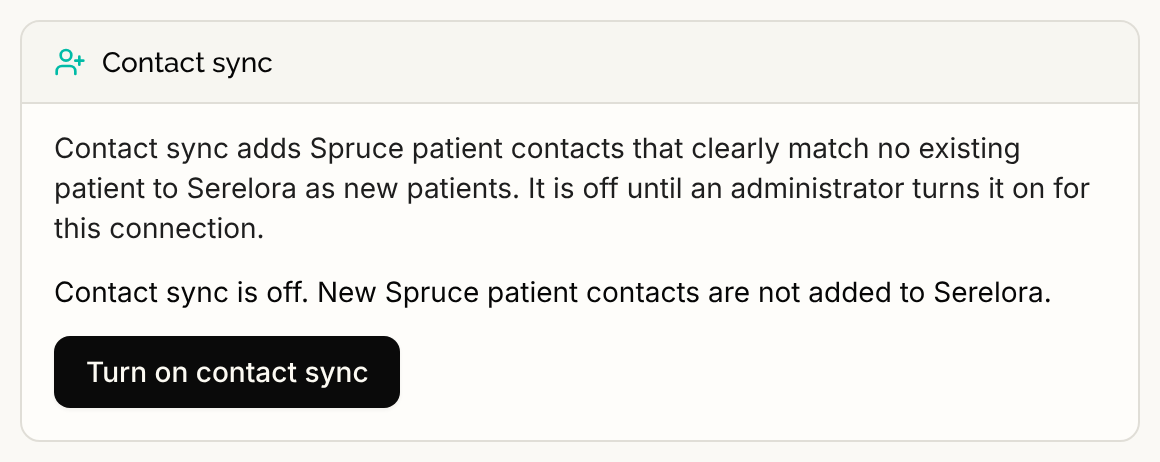
Step 2: Select Turn on contact sync
Select Turn on contact sync. A confirmation explains that:
- Each new or updated Spruce patient contact is checked against your patients, and so are contacts Spruce already sent that are still waiting.
- A contact that clearly matches no one becomes a new patient automatically.
- Possible duplicates, contacts missing required details and contacts linked before are never created. They wait in Unmatched for an Admin.
- Existing patient details are never changed.
- Replacing your API key turns contact sync off.
Select Confirm turn on to go ahead, or Cancel. Nothing changes until you confirm.
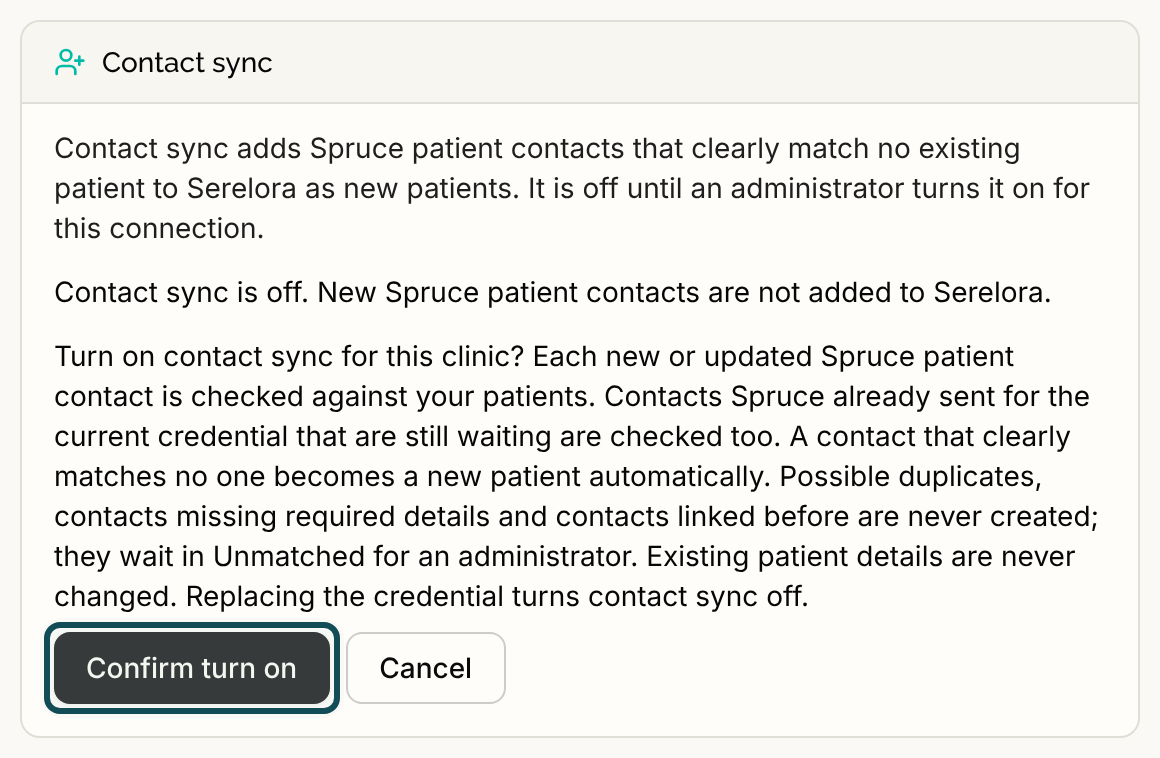
Step 3: Check the state
When it is on, the card reads "Contact sync is on (turned on by you)." or "turned on by another administrator". If contacts are waiting, it adds the number "waiting in Unmatched for review". Open the Unmatched sub-tab to decide them. See Spruce Unmatched Contacts and Held Conversations.
Turn it off
Select Turn off contact sync, then Confirm turn off. The confirmation says this removes the authorization, so it stays off until an Admin turns it on again. New contacts stop being added. Patients already created or linked stay, and contacts waiting in Unmatched stay there.
When it stops on its own
- Paused. While Spruce is paused, the card says it is on but held, and no contacts are processed until Spruce is resumed.
- Lapsed. The card reads "Contact sync is off for now. It was turned on earlier, but that no longer applies." This happens when the Spruce key was replaced, and then it stays off until an Admin turns it on again with Turn on contact sync again. It also happens when the Admin who turned it on loses access, and then it starts again if their access is restored. Turn off contact sync removes the earlier authorization.
- Status unavailable. "Contact sync status is temporarily unavailable. Reload the connection to try again." Select Reload connection at the top of the Clinic connection card.
What it does not do
Contact sync does not link a contact to an existing patient on its own, import any messages, or copy more than name, date of birth, the first valid phone number and the first valid email. If a contact's email already belongs to a patient's sign-in, nothing is created and the contact waits in Unmatched.
For other messages, see Spruce Problems and Messages.