Search documentation
Find a documentation page by the words on it.
Documentation
Month-End Accounts Receivable Review
At month end you want to know what is owed, how old it is, and whether anything is sitting unbilled or unapplied. Serelora keeps these as live views, so you can run the same review in a few screens whenever you like. This page gives a checklist in a sensible order.
This feature is controlled by the Billing feature flag. If you do not see it in your clinic, contact Serelora at support@serelora.com and ask for it to be turned on.
What you need
- The Billing group in the sidebar, which Admins, Physicians, Office Managers and Administrative Assistants see by default.
- To fix what you find, such as applying a payment or recording an adjustment, an Admin or Office Manager.
Step 1: Clear what is unbilled
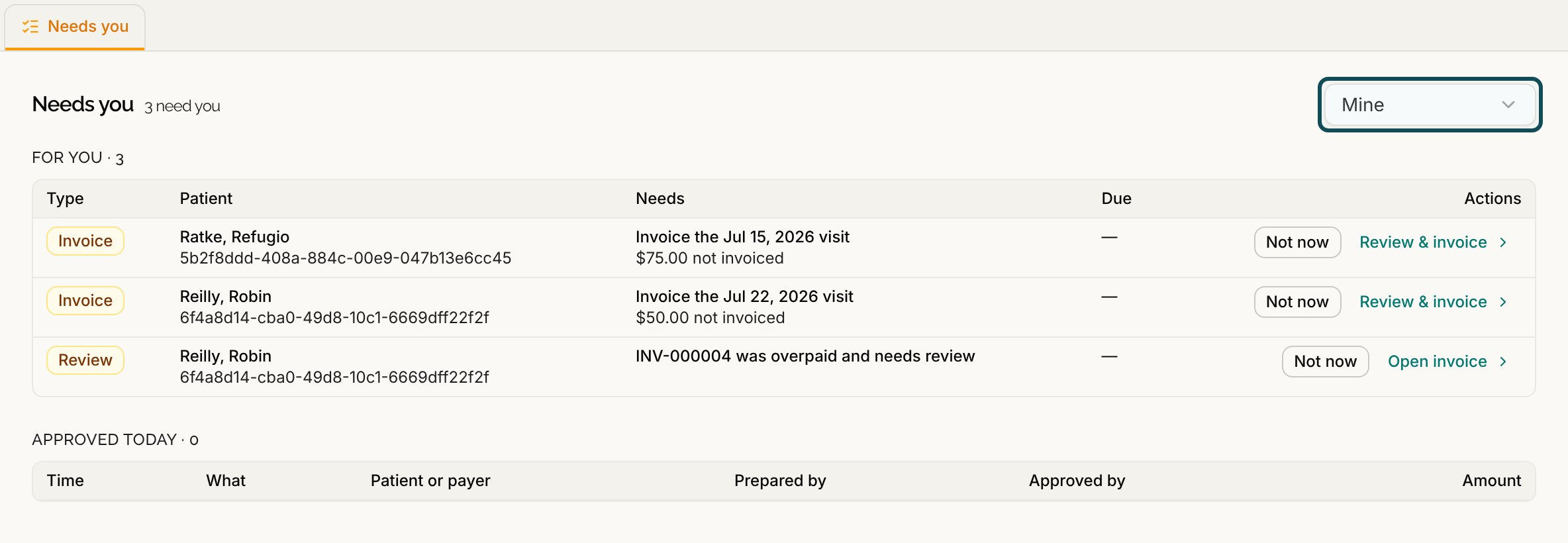
Select Billing, then Needs you. Switch the menu from Mine to Whole clinic to see every task. Work through finished visits with no charges, charges not yet invoiced, payments not applied and overpaid invoices. See Needs You Worklist.
Step 2: Apply unapplied money
Open Billing, Payments, Unapplied. It lists every payment taken without an invoice, with a total. Apply each one to an invoice, or leave it as credit if no invoice can take all of it. See Applying Payments to Invoices.
Step 3: Review overpaid invoices
On Billing, Payments, Invoices, pick the Needs review chip. Open each invoice and select Mark reviewed once you have looked at it. See Recording a Payment.
Step 4: Read the receivables summary
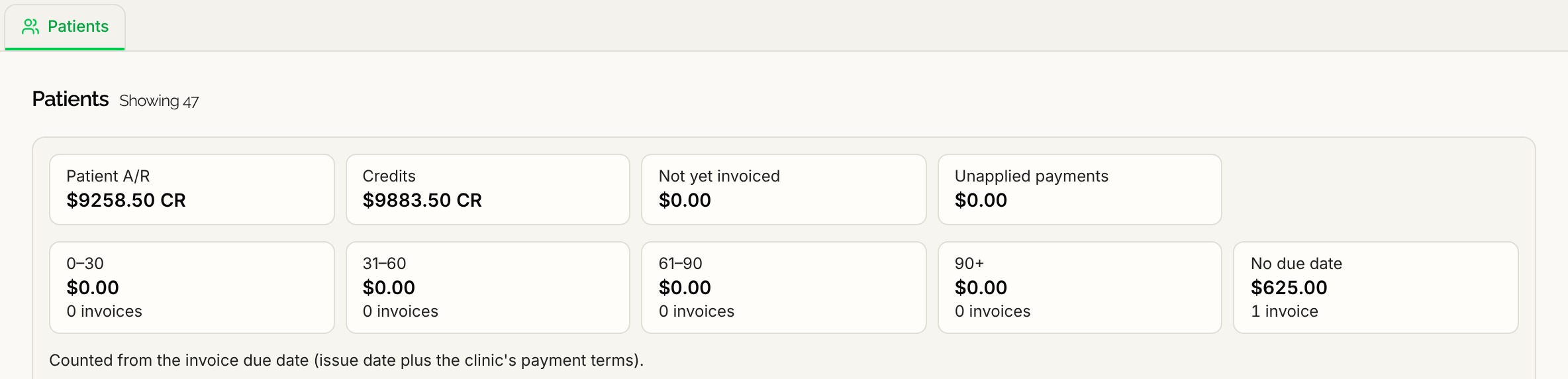
Open Billing, Patients. The summary at the top shows Patient A/R, Credits and Unapplied payments, then age tiles for 0–30, 31–60, 61–90, 90+ and No due date, each with its invoice count. Top balances lists the largest balances. Ages count from each invoice's due date, which is its issue date plus your payment terms. See Open Balances and Unpaid Invoices and Setting Payment Terms for Invoices.
Step 5: Work the past due list
On Billing, Payments, Invoices, pick Past due, and follow up as described in Collecting Patient Balances.
Step 6: Review payments and adjustments
The Payments tab lists payments received, with the date, patient, method and what each was applied to. Adjustments are listed per patient, under Records and the Adjustments chip in the patient's Billing tab, and every invoice, payment and reversal is in that patient's History. See Patient Billing Records and Financial History.
What Serelora does not do
- It has no month-end close. Nothing is locked at the end of a period, and the views always show the current state.
- It has no billing export. The summary, lists and history are on screen. Each invoice has Download PDF, but there is no download of the receivables summary or a payments list.
- It does not report on balances through the Practice Agent. The Practice Agent answers clinical questions about your panel, see Practice Reports and Analytics with the Practice Agent.
- It does not show insurance balances. Serelora does not submit claims to payers today, so these figures cover what patients owe.